









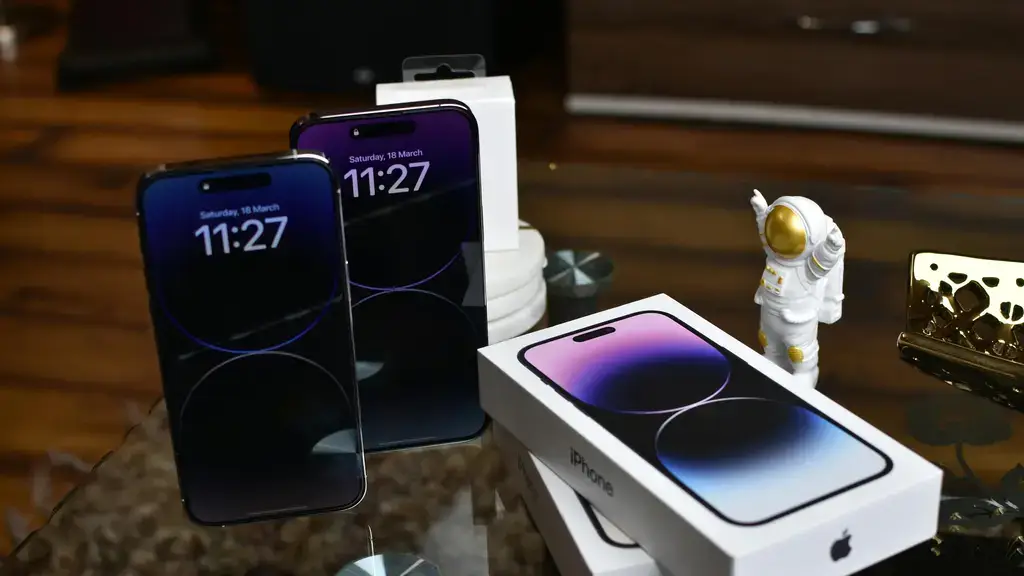
In today’s digital age, our smartphones are essential companions. Whether you are using your iPhone for calls, messages, or browsing the internet, one consideration that remains constant is battery life. The good news is that there are some straightforward screen settings you can adjust to make your iPhone’s battery last longer. Let’s explore five simple changes you can implement to keep your device running throughout the day.
1. Adjust Your Screen Brightness
One significant battery drain on your iPhone is the brightness of your screen. Although it’s wonderful to have a bright screen, maintaining it at maximum brightness is unnecessary, especially indoors. You can adjust the brightness manually by swiping down to open the Control Center and using the brightness slider.
If you find the process cumbersome, consider enabling Auto-Brightness. This feature automatically adjusts your screen’s brightness based on the lighting conditions around you. To enable this, go to Settings, then Accessibility, followed by Display & Text Size. At the bottom, you’ll find the Auto-Brightness option. This little change can conserve a considerable amount of battery life daily.
2. Reduce Motion
Have you ever noticed the dynamic effects when you move between apps? While these transitions look sleek, they do consume additional battery life. To save on power, especially if you don’t miss them much, you can reduce the motion effects. Simply go to Settings, tap on Accessibility, then Motion, and turn on Reduce Motion. This setting decreases the motion of the user interface, which in turn reduces the power consumption.
3. Turn Off Raise to Wake
Raise to Wake is a feature that automatically wakes your screen when you lift your iPhone. This can be handy, but it also means that your screen lights up frequently, sometimes unintentionally, thus using battery. To turn off this feature, head over to Settings, tap on Display & Brightness, and toggle off Raise to Wake. Now, you’ll need to press the home button or the side button to activate your screen, a small trade-off for extended battery life.
4. Shorten Auto-Lock Time
The Auto-Lock feature determines how long your iPhone screen stays on without activity before it automatically locks itself. A shorter time can save power by ensuring the screen isn’t unnecessarily active. To change this setting, open Settings, go to Display & Brightness, and select Auto-Lock. Here, you can choose a shorter time interval, such as 30 seconds or one minute. This simple change means less screen-on time and more battery saved.
5. Use Dark Mode
If you have an iPhone with an OLED display, such as the iPhone X or later models, enabling Dark Mode can be particularly beneficial for battery life. OLED screens consume less power when displaying darker colors. Switching to Dark Mode is straightforward: go to Settings, tap on Display & Brightness, and select Dark as your appearance preference. Apps that support Dark Mode will also adjust to this setting, enhancing your battery conservation.
By tweaking these screen settings, you can witness a noticeable improvement in your iPhone’s battery life. These changes are easy to implement and can make a substantial difference in how often you need to reach for the charger. Besides these adjustments, always keep your software up to date to benefit from the latest battery optimizations that Apple provides. Now, enjoy staying connected longer without the worry of your battery running out!